Archive
The Tivax MiTraveler 8-inch 3D Tablet: No Glasses Required (Review)
 MiTraveler 3D-8
Tivax/Michley Electronics, Inc.
Amazon (Prime) $240.71 (Retail: $369.99)
I didn’t know what to think when I first heard of the Tivax MiTraveler Android-based 3D tablet, except, “This I have to see.” The No Glasses Required part of the advertisement was especially intriguing to me. I wanted to see if it looked 3D or if it looked like the 3D pictures of my childhood that had that blurry, headache-inducing, “deep sight” kind of thing going on.
Although it took me almost an hour to figure out how to switch into 3D mode, I’m glad that 3D isn’t the default mode. I, personally, can’t look at 3D video for very long at a time. It’s interesting when I’m in a darkened theater and that’s my only focus but an 8-inch tablet is quite a different story.
It works. You can see movies or photos in 3D without glasses. But, for me, the technology still isn’t where it needs to be for prolonged use. Right now, it’s more of a “Hey, look what my tablet can do” sort of thing. That’s just my opinion. If you’re interested in viewing movies or photos in 3D, check one out at a retailer or spring for the $240 and buy one direct.
Specifications
- OS Android 4.1 Jelly Bean
- Dual-core CPU
- Flash 10.1 supported
- Parallax barrier 3D technology
- Capacitive multi-touch screen
- 8GB storage
- 1G RAM
- Resolution: 1280*800
- Wi-Fi 802.11 b/g/n
- Micro SD card port for storage expansion up to 32GB
- Micro USB port
- Mini HDMI output
- Built-in speaker & microphone
- 0.3M front camera and 2M rear camera
- 5000mAh Li-Polymer battery
- Supports Bluetooth
Don’t get me wrong, I like the MiTraveler tablet, even in 3D mode. I’m just saying that I can’t look at it for a long period of time, at least not without Dramamine. It’s a me thing, not a Tivax tablet thing. The 3D effect on the MiTraveler is very good and there are actually three 3D modes to choose from. My favorite is the 2D to 3D effect. It looks more like a real 3D movie. The horizontal and vertical 3D modes have to be used with photos and movies that specifically use those techniques, otherwise they are unwatchable. You can experience the real 3D effect with the 2D to 3D mode.

Figure 1: Video Options Bar
You can switch into 3D mode with a single tap while watching a video. When you start a video, tap the 3D icon in the video options bar shown in Figure 1. Unfortunately, in 3D mode, the Android tablet doesn’t seem to allow me to take screenshots. I assume it’s because it doesn’t know how to render them. In your case, the video will be playing in the background. This particular video shows two side-by-side pictures, which when combined, create a very nice 3D effect.
So, the exact steps to see a movie in 3D are:
- Start the movie.
- Tap the screen once to launch the Video Options Bar at the bottom center of your screen (Figure 1).
- Tap the 3D icon to launch a 3D Options Menu.
- Select the option that will play your video.
- For the Transformers demo video, select 3D Left Right.

Figure 2: 3D Options Menu
See Figure 2 for the 3D Options Menu.
If you want to view a “normal” video in 3D mode, select the 2D to 3D option.
You can browse the web and the local filesystem for videos, so you aren’t limited by delivery method. You can adjust the sound volume to suit you but beware that different videos have different sound levels and you’ll have to adjust each one accordingly. This is not a fault of the tablet, but normal variation in video production quality and style.
As far as other functions, the tablet looks fairly limited upon first glance. The default desktop would lead you to believe that the MiTraveler is primarily a photo and video viewing device. It isn’t.
Figure 3 shows you the desktop and all available default desktop apps: Browser, Email, Camera (front and rear facing), STREAMit, and Music. If you want to see all of the installed apps and the Google Play Store app, tap the multi-window icon in the upper right corner of the main desktop screen. There you’ll see all of your standard apps plus a few extras that are sound, movie, and game-related to take full advantage of the tablet’s 3D and accelerated 2D capabilities. You can copy any app to the main desktop by pressing and holding its icon for a few seconds, so you can customize the MiTraveler in any way you like.
You can download apps, remove apps, and treat it as you would any other Android device. The only difference is that this one can render video in 3D.
Why it’s Frugal: The Tivax MiTraveler 3D 8-inch tablet is anything but frugal. But, it’s a specialty item and it’s not designed or marketed as a frugal or inexpensive device. It’s more than a standard Android device but functions like a standard one except for the 3D enhancements.
The Tivax MiTraveler is an excellent 3D video movie and photo viewer. If you love 3D video, you’ll love this tablet. If it’s not your thing, save your money. You’re probably asking yourself (and me) if I think that the tablet is worth the money for the 3D enhancements. Good question. I think it is. The 3D is smooth and well done. I’m not sure how they do it and like making laws and making sausages, I don’t think I want to know how it’s done. I appreciate it for what it is. I don’t need the details.
The MiTraveler is a quality device that does exactly what it says it can do. I tried to find something wrong with it and couldn’t. So, if you have $250 and you want a 3D capable tablet, this is the one you want.
Rating: 9/10
Recommendation: Buy the Tivax MiTraveler 8-inch 3D tablet for awesome 3D rendering. And remember, no glasses required.
The Lap Log: A Made in USA iPad, eReader, or Tablet Stand
 The Lap Log
Bamboosa, LLC.
$39.00 to $50.00 at Bamboosa and Amazon (Prime)
The Lap Log seems an unlikely tablet computer accessory but it’s a really nice one. It’s made of sustainable, renewable products right here in the USA. In my humble opinion, the fact that it’s made in the USA, presumably in South Carolina, is a very good thing. Companies that manufacture good in the USA create new money, use raw materials, and support families by employing local workers. But regardless of where a product is made, consumers want quality products that have value. Bamboosa products fulfill that need. The Lap Log is a soft stand that supports your iPad, eReader, or tablet computer in your lap.
- Adjustable to any viewing angle and stable on all surfacesMade from Eco-friendly Materials
- GOTS Certified 100% Organic Cotton Twill
- Filled with natural buckwheat hulls
- Eco-friendly, removable wooden insert that holds tablet
- Use as a safe and stable station for your tablet to sit while charging
The Lap Log is filled with locally grown buckwheat hulls just like the famous Sobakawa pillow. And if your Lap Log doesn’t fit where you work exactly, you can remove or add buckwheat hulls to adjust it for your needs. How do you add more, you ask? Bamboosa sends you an extra bag of buckwheat hulls. I get the feeling that Bamboosa cares about its customers and its products. It even prints the extra bag information on 100% recycled paper. And Bamboosa offers a 365-day return policy.
I’m proud to see a US-based company that not only produces quality products but one that also is environmentally responsible. They could produce a far less eco-friendly product at a fraction of the cost or ship the manufacturing overseas but they don’t. I, for one, appreciate their efforts.
The Lap Log measures approximately 10.5 x 5 x 5 inches and weighs in at just over one pound. It’s perfect for travel and contains nothing that would set off any airport or ship sensors. If you’re like me, you always have your tablet with you. The Lap Log makes an excellent travel companion during flights, at the airport, in your hotel room, in a coffee shop, or on a park bench.
Of course, the Lap Log is perfectly suited to staying at home too. I take mine to the hammock and use it in my lap out there in the back yard, until I fall asleep that is. And although it’s not marketed as such, it makes a great makeshift hammock pillow too. The Lap Log is washer and dryer safe (follow the instructions) and can be wiped clean with a damp cloth in most cases.
Why it’s Frugal: The Lap Log is frugal because you can use it anywhere and for any tablet computer or eReader–you don’t have to buy more than one product stand. It’s also frugal because it’s an environmentally conscious product. Anything that is sustainable, recyclable, and harmless to the environment is frugal. Plus it’s manufactured in the US, which sustains jobs and creates money.
My wife uses the Lap Log in the kitchen to hold her iPad mini while she’s cooking and looking at a recipe on Allrecipes.com. It’s handy because it’s stable and, as she puts it, “Is shmutz resistant.” My daughter uses it to prop up her iPad mini when doing homework. It sits on her bed while she works. She says it’s “Very handy.” She’s a child of few words and I was lucky to get those in between homework, friend chatting, and listening to My Chemical Romance on iTunes or Pandora.
Do you get the feeling that I don’t see much of the Lap Log because of the other users in my house? You’d be correct to assume that. They just call it “The Log,” which I suppose is OK. I’ve stopped correcting them and steering them toward the official name of Lap Log. There are just some battles not worth fighting.
I like the Lap Log. It’s versatile. It’s made in the USA. It’s eco-friendly. It comes in a variety of colors and patterns. And it’s a product that will last for years. What’s not to like?
Rating: 9/10
Recommendation: Buy one for yourself and a community one so that you’ll get to use yours. Hammock not included.
Jelly Box Portable Bluetooth Speaker (Review)
 Jelly Box Portable Bluetooth Speaker
OrigAudio
$34.99
OrigAudio designs some of the coolest and most affordable music/sound-related thingies on the market today. If you don’t believe me, check out the website and go to Amazon and search for OrigAudio and see for yourself. Cute, fun, happy, clever are all words that come to mind when I see the brain drizzle from OrigAudio’s founders Jason Lucash and Mike Szymczak. I’m assuming that Mike’s real last name isn’t really Szymczak. My guess is that he lost at Scrabble and is paying off some drunken bet that he made with Lucash, et al.
I digress.
This is a review for the Jelly Box portable Bluetooth speaker. They sent me a black one. Clever. I’ve heard of other colors, you know. Seriously, I’m not tricked by the thought of a Blue Raspberry, Dragonfruit, or even an <yuck> Grape Jelly Box.
Anyway, I’ve reviewed other portable Bluetooth speakers on frugalnetworker.com and this one stands well with the rest of them and at a decent price point. The Jelly Box has clear, bright sound, even at the highest levels where my teenaged children like to play it. I’m glad I was working in the yard the day my daughter decided to blast My Chemical Romance and Panic! at the Disco tunes on it. Don’t get me wrong, I like those bands but at a non-earwax cleaning level, thank you. In fact, I took my daughter to a Panic! concert earlier this month and now I’m a super fan. No T-shirts or faux-hawk yet, but the year is still young and summer’s coming.
Jellybox Bluetooth Speaker features:
- Full stereo sound with Bluetooth functionality
- Bluetooth range up to 33 feet
- Built in microphone and one touch call answering for phone calls
- On-speaker play/pause and change song buttons
- Built in TF card slot to store your music in the speaker
- Mini USB charging slot (cord included)
- Speaker power: 3 watts
- S/N: ≥ 60dB
- Frequency response: 100HZ-20KHZ
- Battery life: 10 hours
- Size: 4 x 2 x 1.5 inches with a weight of 0.75 lbs
- Compatible with any device that has Bluetooth connectivity. Also included is a 3.5mm audio cord for devices that don’t have the option of Bluetooth.
- Available in 9 different flavors (colors).
 Speaking of summer, the Jelly Box would serve you well by the pool, on the beach, on a picnic, while doing yardwork while your lazy teenagers sit and drink iced tea and watch you, on a road trip, or even just chilling in your room. You can adjust volume on the Jelly Box or on your phone. You can also skip or revert tracks, replay a track, and answer your phone using the Jelly Box’s built-in speaker.
Note: The only thing jelly-related about the Jelly Box is perhaps the jelly-related colors, although I can’t really speak to the whole color thing directly, but I think that’s probably what they were going for.
 I really like the Jelly Box portable Bluetooth speaker. You can plug in a non-Bluetooth device into it as well. The unit also sports a TF (micro SD) card slot for storing your music. I don’t think you can play it from there, although I didn’t try, I think it’s just for convenient storage. If you get one in color, you could write your favorite artist’s name with a Sharpie on it. It would look something like the illustration to the right. This is only a theory and I have not had the opportunity to test it for myself, so YMMV.
Of course, being young entrepreneurial types, living in (you guessed it) California, they’ve got their liberal, offbeat, hipster causes that some people view as positive, as uplifting, and as what successful and happy people should do with their millions of ill-gotten gain. I only mention it in passing.
Why it’s frugal: The Jelly Box is a lot of things but frugal isn’t one of them. It’s cute. It’s fun. It’s well priced for the market. Why does something always have to be frugal to be purchase worthy? It doesn’t.
 The Jelly Box connects to your Bluetooth enabled device easily and immediately. My iPhone 5 picked it right up and all I had to do was tap “Connect” on my iPhone to make the connection and listen to my Frank Sinatra and Duke Ellington hits–HA! Kidding, I listen to Flyleaf, Mazzy Star, The Cure, Coldplay, Lisa Loeb, and Gotye. Yes, I know, I have varied tastes, shut up about it already.
What more can I say about the Jelly Box? It’s portable. It’s well-made. It works. I understand that it comes in a variety of awesome colors. It plays loud. It plays soft. It plays well with others. And I’m sure that Frank Sinatra and Duke Ellington sound great on it too. So buy one for Grandpa, Grandma, and the whole gang. Anyone can afford $35. And if it keeps the likes of Lucash and what’s his name off the street, I’m good with that.
Rating: 9.372/10
Recommendation: Buy one in one of those cool colors and tell me what you think of it.
Secur Sun Power Bank 4000 (Review)
 Secur Sun Power Bank 4000 Portable Charger
Secur Products
A division of Maverick Industries, Inc.
$69.00 estimated
When I first saw a note about the Secur Sun Power Bank 4000, my curiosity piqued. “A solar-powered charger for my various gadgetry,” I queried to myself. Could it really be? Well, I had to find out for myself and report to you on my findings.
The Secur Sun Power Bank 4000 (4000) is approximately the same size and weight as an Android phone. The dimensions make it easy to carry or to stow away in a small bag. You can plug into the charger using your mini USB connector or you can use the built-in one. It’s a matter of convenience and space as to which one you use. For Apple device users, you have to carry along a charger cable to plug into the device’s standard USB port.
Remember to press the On/Off button on the bottom of the unit or your device won’t charge.
DETAILED FEATURES:
- High Efficiency Solar Panel
- High capacity lithium polymer battery – 4000 mAh
- Built-in full size male USB cable and plug
- Built-in male micro USB cable and plug
- Female USB port for charging any digital devices
- Built in micro USB for charging via USB power sources
- LED light indicator for current battery charge
To charge the unit fully, you plug it into a computer’s USB port via the built-in standard USB cable. Alternatively, you can place the unit in direct sunlight to charge it via its high-efficiency solar panel.
As intriguing as it sounds to have a solar-powered battery charger, it’s not all that practical when recharging the charging unit itself. You’ll probably plug it into your computer for a full charge, which requires four (4) hours. The reason that using the sun isn’t practical for recharging the unit is that it requires 14 to 18 hours of full and direct sunlight to a full charge. I suppose that you could leave it on the dashboard of your car while you’re at work or in school and hope for a half charge when you’re ready use it.
TECHNICAL SPECIFICATIONS:
- High Efficiency Solar Panel – 5.5V/280mA
- 21.5% efficiency
- High Capacity Lithium Battery – 3.7volts/4000 mAh
- Micro USB Input – 5V/1A
- USB Output – 5V/2.1A
- Charging time via USB input – 4 hours
- Charging time via built-in solar panel – 14 – 18 hours – Full Sunlight
- 3″ x 5″ x .5″
- 6 oz.
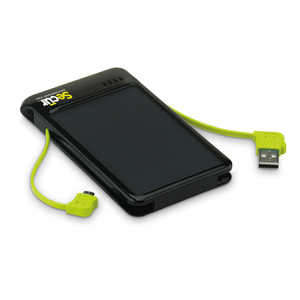 That minor flaw aside, if you’re in a real power pinch and you’re also in the sun, you can use the 4000 to power your phone while you make an emergency call. As a charger, the 4000 is cool. As a solar-powered charger, it’s about average. Solar cells haven’t really made the efficiency leap that’s required for today’s power-guzzling gadgets. Maybe in a few years the battery charging technology and the battery-sucking technology will meet in a better place.
The lack of solar cell efficiency isn’t the fault of the manufacturer; it’s just a technological shortfall. It will get better (more efficient) and less expensive to use solar.
Why it’s frugal: For an estimated $70, the 4000 isn’t all that frugal unless you live in a place that gets a lot of sunlight or you do as I suggested and leave it on the dash of your car to power up. As a standard portable charger the 4000 is fine, but a little pricey. It’s frugality is mostly based on your access to the sun for recharging and your need for “off the grid” power.
I once owned a “solar” calculator that I loved. It lasted for more than 15 years. In fact, I might still have it somewhere in the garage. Solar-powered devices rarely die. The advantage my calculator had was that it really wasn’t bound to the sun for power. That would have been downright silly–that the only place I could use it was outside when I really needed it inside. Thank goodness it was photon-powered and not just solar-powered. If you don’t know the difference, this isn’t the place to learn it, sorry.
The bottom line here for the Secur Sun Power Bank 4000 is that it’s a clever device. It’s well-designed. If you’re a camper, hunter, beach-goer, or truster of things left visibly in the sun, then the 4000 is a jackpot for you–you can totally survive with your gadgetry in an off-the-grid fashion. For some people that’s really important.
If you ignore the whole solar thing, unless you really need it, the 4000 is still a good portable source of power. It’s lightweight, clever built-in cord design, and cell phone sizing makes it a nice companion for you on-the-go types.
Rating: 7.5/10
Recommendation: This is your chance to go “green” and to spend some time in the sun.
Little Scholar Educational Tablet for Kids (Review)
 Little Scholar
(Little Scholar Educational Tablet for Kids)
School Zone
$199.99
The Little Scholar™ tablet is an 8″ Android tablet designed by School Zone especially for children ages 3 to 7. Almost 40 years ago, James Hoffman, Ed.D., and his wife Joan Hoffman, M.A., began a retail supply outlet for teachers. Soon after that, they began School Zone Publishing and created flash cards and workbooks for students. You’d be hard pressed to walk into a teacher’s supply store and not see a School Zone product. School Zone is the brand that teachers and parents of young learners depend on–and have depended on for close to four decades.
The Little Scholar has a bright and cheery screen featuring delightful characters that kids love. The screen is fully touch interactive. Each tablet comes packed with games, songs, and apps that provide hundreds of hours of learning fun for your kids. The Little Scholar also comes with front and rear-facing cameras that your child can use to take photos and movies. And if you enable it, the Little Scholar can connect to WiFi access points to give you Internet access, including access to the Little Scholar app store where you can purchase more games and apps.
Internet access also helps keep your tablet up to date with the latest patches and software revisions.
For Parents
Turn on the Little Scholar by pressing and holding the power button for about three seconds. Be patient after you see the Lexibook logo and the School Zone logo as it takes a little while for the unit to completely power on. To access the settings, including WiFi, sounds, and so on, tap and drag the lock icon to the right until you drag the lock onto the circle. Once the unit unlocks, tap the gold lock icon in the upper right of the screen.
123 is the default password. Tap the Submit button after entering the password. Now you can access everything on the tablet that isn’t usually visible to your child. From the screen you see now, tap Settings.
 If you have an Android tablet, this screen looks familiar to you. Here is where you setup WiFi access, Bluetooth, check data usage, and adjust or view other relevant technical settings of the tablet.
The tablet comes with an instruction manual that is very good but this is such an important aspect of the inner workings of the tablet, I thought I’d make a point to share this with you. For the most part, the settings and other configurable items are intuitive for anyone who’s worked with any type of cell phone or tablet device. You don’t need a lot of experience or expertise to make the necessary changes. If you need assistance, ask anyone over the age of ten. <wink>
If you leave the Settings area and return to the Home screen, you will have to re-enter the password to make any other changes. It’s also a very good idea to change the password so that your child doesn’t stumble onto it by mistake and make changes to the system that might prove difficult for you to undo.
 To reset the system password (The 123 one), tap the Go Back icon (Bottom Left Corner) to return to what I call, The Parental Options Screen or Parental Lock Screen, and tap Reset Password.
From this same screen, you can hit Schoolzone.com, go to the App store and purchase and download new apps, provide feedback, and manage your apps.
Little Scholar Tech Specs
Screen size: 8-inch screen
Screen resolution: 1024 x 768 pixels
Display: Thin film transistor active matrix liquid-crystal display
OS: Google Android™ 4.2.2
CPU: 1.2 GHz dual-core ARM Cortex-A9
GPU: PowerVR SGX540
Storage: 8GB – Micro SD cards compatible up to 32GB
RAM: 1024MB DDR3
Camera: 300KP front / 2MP back
Wi-Fi: 802.11 b/g/n (built-in)
Audio: Built-in mono speaker
Connectors: 1 micro USB 2.0 port, 1 Micro SD card slot, 1 headphone jack, 1 DC port, 1 Mini HDMI port
Bluetooth® Version: 4.0
Battery: Lithium battery (included) – 5000mAh, 3.7V
Adaptor: Input: 100V – 240V ~ 50 / 60Hz 0.4A
Output: 5V 2A
Battery life: 7 hours (average)
Dimensions: 221 x 155 x 12 mm
Weight: 470 g/1lb 6oz
Language: English
For Kids
The kids will enjoy working with the apps, learning how to spell, learning math, singing along, and playing games. My son, who works with children in the age range of Little Scholar users, took the Little Scholar to work as a favor to me to see how the kids liked it. They loved it! A word of caution, though, the Little Scholar tablet is not a toy nor is it an “electronic babysitter.” It’s a piece of computing equipment that I’d suggest being used only with some supervision.
The Little Scholar does have a protective, rubberized case on the back but the front (screen) is still vulnerable to drops, scratches, and accidental foot-in-the-screen incidents. The tablet isn’t fragile or delicate but does require some care to prevent annihilation from careless handling. Just be close by during its use and you should have no problems.
Why it’s frugal: If you just look at the $199.99 price, it doesn’t seem frugal. But if you look at the Little Scholar as a learning investment, it’s extremely frugal. In fact, for the number of books, videos, songs, and apps, you’d pay much more for any other tablet computer plus the price of the apps. The Little Scholar comes with hundreds of hours of fun and educational material for your child. Additionally, the Little Scholar is made just for little learners. It isn’t simply a tablet computer that you add educational apps to; it’s a learning device and that’s pretty frugal for a mere $200.
Check out the School Zone Little Scholar Flyer for a lot more information on the product and its features.
I like the Little Scholar tablet. I find that the price is appropriate for what you get. It is a well thought out learning tool for young children. With proper care and cleaning, your Little Scholar should last for three years or more. School Zone products are well made and well supported. If your little scholar needs a fun boost or a little extra learn time, the Little Scholar tablet is better than television and the Little Scholar has no commercial interruptions.
Rating: 9.5/10
Recommendation: It might be the best $200 you ever spend on your child’s education.
In Search of the Holy Grail Screen Protector (Review)
 Holy Grail iPhone 5 Screen Protector (clear)
Sir Lancelot’s Armor
$9.95 Available in clear or non-glare
The Sir Lancelot’s Armor iPhone 5 Screen Protector (Protector) is a reusable iPhone 5 screen protector made of bulletproof glass. I received the clear version of the product to review. There is also a non-glare version available but be aware that it causes a slight pixelation when you look at your screen. If you’ve ever used a non-glare or privacy screen over a computer or mobile device screen, you know what to expect. Some people don’t like the effect. I’m one of those people. It makes me a bit dizzy to look at a screen that has a non-glare or a privacy product attached.
The clear product is thin and practically unnoticeable when attached. It is unobtrusive and doesn’t slip or slide around on your phone. I tend to keep my phone in my back pocket and the protector hasn’t budged since I placed it on my phone two weeks ago.
If you don’t get the protector on just right, you can move it. It’s reusable. Just pry it up with your fingernail at one corner and lift. Reposition as necessary.
The protector also comes with a Home button protector as well but it isn’t mentioned in any of the literature. You’ll find this button protector handy for two reasons. First, it protects the Home button from impact damage due to drops. Second, while the protector is very thin, it still adds a bit of an extra layer to your screen so the Home button protector raises the button up to a better level.
In fact, I found that repositioning the protector with the Home button protector installed helped me better align the protector, so my advice is to install the Home button protector first.
To install the Home button protector, peel off the backing and place it over your Home button. Doing so will likely press your Home button but that’s not really a problem. Just lock your phone before installing it so that any presses will occur without issue.
Installation is very easy and consists of these four steps:
- Clean your screen with the supplied screen moistened cloth cleaner.
- Peel off the back plastic layer.
- Align the protector and press to set.
- Smooth out any bubbles with the supplied dry cloth.
I didn’t have any bubbles to smooth out on my iPhone, so I can’t speak to that aspect of how effective the cloth works for that. Keep the dry cloth handy to remove fingerprints from the protector. The protector won’t fingerprint as bad as the bare screen but you’ll still want to occasionally wipe it clean.
If you’d like to see the product interactively installed, check out the installation videos.
Notable features of the iPhone 5 Screen Protector:
- Made from the highest quality recyclable materials
- Protects your screen from scratches, cracks and the every day elements
- Designed to inhibit bacterial growth
- Easy to install
- Lifetime Warranty
It’s difficult to show you the product because it’s clear glass. The installation videos are the best venue for viewing the product in action.
I wondered, as I installed the product, if it decreased the sensitivity of the original screen. Would I have to tap harder or leave my finger on the surface longer to use the phone. If so, those things would be a deal breaker for me. I want good protection for the device but I don’t want to have to think twice about using the phone because of it.
The good news is that it doesn’t decrease the original screen’s sensitivity or hinder you in any way. It doesn’t magnify the icons or require any extra tapping or pressing from you. It’s as if the screen protector doesn’t exist at all.
Why it’s frugal: The Sir Lancelot’s Armor iPhone 5 Screen Protector is frugal because it protects your iPhone 5 screen with a proven technology. To repair an iPhone screen costs an average of $250. The Protector is $9.95. You can do the math.
The manufacturer has tested the product in some very harsh ways: drills, razors, hammers, knives, and saws. The protector ranks at 9 on the Mhos hardness scale. A diamond is 10.
It feels the same as your regular screen and it’s much better than those little plastic screen protectors that only protect you from surface scratches. In fact, it’s kind of funny that the manufacturer basically provides you with two of those cheap plastic screen protectors as product backing for the Holy Grail Protector. They’re the ones that you peel off of the product and discard during installation.
Sir Lancelot’s Armor also produces protective products for other Apple devices, LG, Blackberry, Motorola, HTC, and Samsung smartphones. If you have another device, check the website as they continue to expand the line of offerings.
I really like the iPhone 5 protector product. What’s not to like? It was easy to install. It protects my phone. It doesn’t impeded usage, performance, or attaching chargers or other cases. And it only costs $9.95.
The product also comes with a limited lifetime warranty against manufacturer defects. So, the bad news here is that you shouldn’t purposely test the product by abusing your device. The damage you do to your device isn’t covered.
Review rating: 10/10
Recommendation: Buy it to protect your device’s screen and your investment.
The Dell Chromebook 11 (Review)
 Dell Chromebook 11
Dell
$299.00
The Dell Chromebook 11 is an educational Chromebook, although, in my opinion, the Dell Chromebook 11 (11) is a Chromebook suitable for general use as well. At three pounds, its weight is in line with other Chromebooks. The 11 feels solid and good in my hands. It doesn’t feel cheap like some Chromebooks do. It feels more like a regular laptop than an inexpensive Ultraportable computer.
The 11 sports the new 1.4GHz Intel 2995U Celeron Haswell processor (CPU) with 2MB of cache. For you less technical types, that’s all good stuff. Just think speed and low power usage. The memory is 4GB DDR3, which means you have plenty of memory (RAM) to handle a large number of Chrome browser tabs with ease.
The Dell Chromebook 11 Technical Specifications:
- Processor – Intel Haswell 2955U processor 1.4GHz
- Operating System – Chrome OS
- Memory – DDR3 Memory 4GB (internal) Advanced
- Chipset – Intel Integrated
- Video Card – Intel Integrated
- Display – 11.6″ LCD Min 1366×768 HDMI 1080p
- 720p Front-facing Camera
- Audio and Speakers – 4W Internal Stereo Speaker (Min 2W x 2)
- Hard Drive – 16GB SSD storage (SATA)
- Power – Internal 220 Watt Power Supply (PFC. nPFC. EPA)
- Primary Battery – Greater than 8 hrs.
- Warranty – 1 year depot repair/service; 1-4 years warranty extension options
- Security – Browser based security with hardware TPM: Phishing and malware. SSL certificates content settings Kensington Security Lock
- Wireless – Dell DW1901 (Atheros). A/B/G/N 802.11
- Two USB 3.0 ports
- Bluetooth 4.0 support
The two things that the 11 doesn’t have as features are a standard 15 pin video out interface and a standard wired Ethernet interface. They aren’t essential features, but they are nice-to-haves. In their place, the 11 has an HDMI interface and, of course, wireless networking. You could use a USB Ethernet connector in one of the 11’s two USB slots.
Why it’s frugal: For $299, you get a fast, solid computer that will easily last you three to four years and possibly longer. The Dell Chromebook 11 is well-built and features a lot of RAM for a Chromebook at 4GB, a 16GB disk, and a fast CPU. Unless the Chrome OS bloats drastically (not likely at all) within the next 4 years, you’ll have made a very wise computing investment.
 The Chromebook 11’s sound is clear and noise free. The camera is a front-facing 720p (YouTube quality HD) and is as good and clear as I’ve seen on any laptop–not just a Chromebook.
Because this model is targeted toward students and education, I should note that the 11 feels sturdy enough to withstand being carried to and from school in a backpack without damage. And the battery has enough life in it to last an entire school day, if plugged in to charge overnight before the school day begins. It’s small enough and lightweight enough to fit into all but the smallest purse, messenger bag, or backpack. Students will love the “instant on” feature that places them at a login prompt upon opening the computer.
Unless you really love trackpads, buy a wireless mouse for your Chromebook. You can buy small ones that are roughly half the size of a regular desktop mouse. The reason for the external mouse is that Chromebooks, including the 11, leave out essential mouse buttons from the trackpad. To right click, you have to press the ALT key while tapping the trackpad. A minor annoyance, but still an annoyance.
The only major drawback to the Chromebook 11 is that it only has two USB slots and they’re both located on the left side of the computer. They’re both next to the HDMI slot, which makes using external HDMI video and two USB devices somewhat cumbersome or impossible, depending on the USB connector widths.
I like the Dell Chromebook 11. What’s not to like? It’s a fast and furious Chromebook with a bright, clear screen that would be perfect for students and just about anyone else regardless of learning status. It’s a good value and you won’t be disappointed with its performance, styling, or durability.
Rating: 8/10
Recommendation: Buy it for a student, for yourself, or for anyone.
Camtasia 2.5 for Mac (Review)
 Camtasia 2.5 for Mac
TechSmith
$99.00
Techsmith’s Camtasia is one of those essential programs for anyone who needs to create interactive content by capturing a live computer screen. That’s what Camtasia’s main job is: to capture live screen actions as video. Simply put, it’s a screen recorder. But it’s also much more than that. Camtasia comes bundled with a powerful video editor, sound editor, and picture-in-picture (PIP) capabilities. You can also share your videos to Screencast.com, Google Drive, or to YouTube.
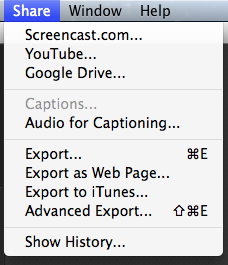 Note: This review covers Camtasia for Mac version 2.5/2.6. My initial download was 2.5 but has updated since that time. [Late update: Camtasia just updated to version 2.7.1].
Camtasia is available for both Mac and Windows computers and I have used both with equal success.
Capturing video, video and audio, or audio alone, plus screen capture is very easy to do with Camtasia. The small control panel makes it easy. Here are the ten steps:
- Open Camtasia.
- Select a screen recording area.
- Choose to use your camera or not.
- Select an audio source.
- Press the Record button.
- Wait for the countdown.
- Begin recording.
- Stop recording.
- Edit recording (if needed).
- Share.
Here’s a short video of Camtasia in action:
https://drive.google.com/file/d/0B6LBZw0Dcm8GSWdRS3czVEx4SFU/edit?usp=sharing
The only step in this list that’s more complicated than what I’ve listed here is editing your recording (Step #9). After you stop recording, your recorded footage opens in the Camtasia editor, ready for you to clip, to add effects, to add voiceover, or to do whatever editing you need to do. The editor is very good, but is no match for higher end editing applications.
 The Camtasia editor isn’t meant to compete with high-end audio/video (A/V) editors, but it does provide you with the tools you need to produce a very high quality video presentation from your screen captures. Alternatively, the higher end A/V editors are very difficult to master, but Camtasia’s is not. So, it’s really a trade off.
Why it’s frugal: Camtasia for Mac is frugal because there’s no other available professional program of its quality on the market for $99.
The $99 price might seem high for a screen capture program, but Camtasia is much more than simple screen capture. It provides you with a professional quality A/V tool and a professional editor at a fraction of the price of buying the two separately. Camtasia is also very easy to use. That ease of use is worth something because it’s difficult to create an application that is user friendly and powerful. Camtasia is both.
Techsmith has also surpassed every company I’ve ever dealt with for customer service. The only exception is Intuit, whose customer service is perhaps the best of its kind anywhere. Techsmith’s customer service professionals are well-trained, polite, and absolutely knowledgeable about their products and problem resolution. Simply put; they’re impressive.
In my opinion, Techsmith’s Camtasia is the best product of its kind on the market. Coupled with its excellent customer service, it’s a winning combination. It will be the best $99 you’ve ever spent.
Rating: 10/10
Recommendation: Buy it. Rely on it.
The Jackery Leaf Snap-on Rechargeable Battery Case (Review)
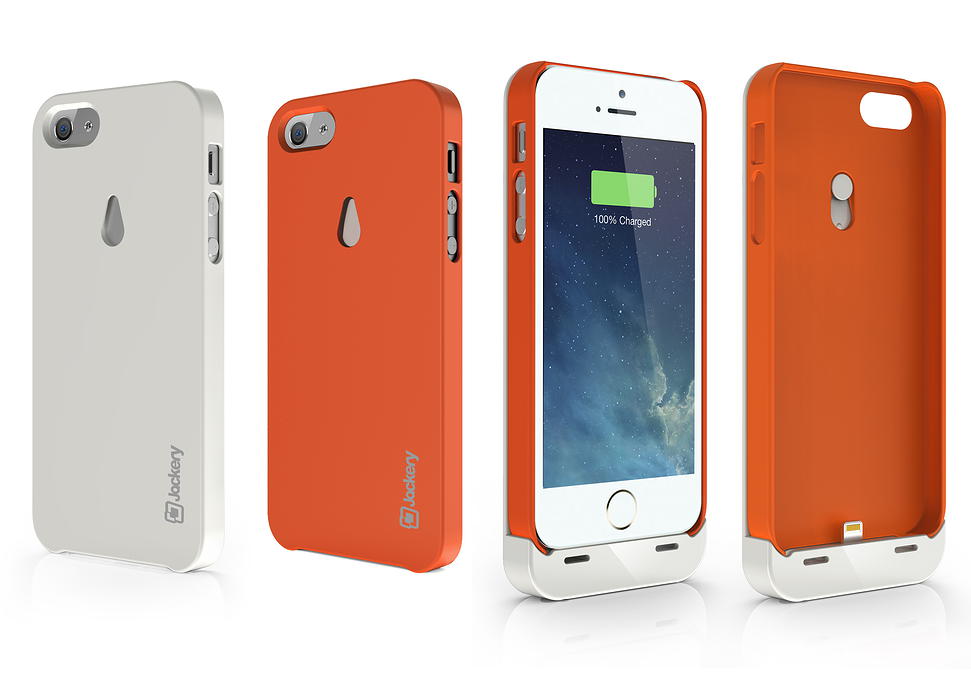
Figure 1: The Jackery Leaf Case and Charger Case Attachment
Jackery Leaf Snap-on Rechargeable Battery Case
Jackery, Inc.
$59.95 Amazon (Prime) or Jackery Web Store
The Jackery Leaf is a case plus an extra life battery charger. The case, as you can see in Figure 1, is an attractive iPhone 5 and 5S case, but it’s also an additional battery life extender/charger.
When you’re not charging your iPhone, you can slip off the charger part of the case and use the regular Jackery Leaf case for protecting your iPhone. The case fits snug and works quite well on its own as a case. And you can use your current case with the Jackery Leaf charger attachment, if it’s relatively open at the bottom so that there are no obstructions around the charger interface.
The case and attachment are well made, sturdy, and durable. Even with the charging attachment connected to the phone case, you can still plug in your earbuds, change sound volume, and perform all phone functions. The charging attachment adds a minimal amount of weight and bulk to your phone. It’s actually a pretty good tradeoff for the extra hours of battery life that you get from the Jackery Leaf.
The Jackery Leaf set includes these features and accessories:
- One 2400mAh premium battery case with built-in Apple Lightning Connector and two premium protective cases for iPhone 5S & iPhone 5; Detachable and easy snap on design.
- Certified by Apple MFI (Made For iPhone); Compatible with All versions of iOS.
- Dual-purpose high speed secured connector for charging and data transfer.
- Three-color LED charging status indicator; Secured battery safety with 4 layers of smart safety protection circuit.
- 1x premium audio extension cable and 1x premium micro-USB charging cable.
The manufacturer claims that the Jackery Leaf can provide up to 110 hours of extra operating time to your device. I have not tested this explicitly or done the math, but I can tell you that with a fully charged case, I get two full charges for my iPhone 5.
The one thing you have to remember when using the Jackery Leaf charger case is that you must press the button on the back of the case to begin charging your phone. The case does not automatically begin charging upon attachment.
You can also attach your “naked” iPhone to the charging attachment but because of the Lightning connector, you have to be a bit careful when doing so. It works, but the attachment is really meant to be used with the Jackery Leaf case.
Why it’s frugal: The Jackery Leaf case is frugal because it extends your phone’s battery life for up to 110 hours. This is frugal because you still have free use of your phone without some tethering to an external wired charger. The convenience of the Jackery Leaf becomes obvious if you’re in a place where handy electric power isn’t available such as a long plane flight, long car ride, or in a public location.
The Jackery Leaf sells online for $59.95. Regular iPhone cases sell for $5.00 to around $30.00 and higher. That’s for just the case–no extra charging capacity. The Jackery Leaf is two protective cases in one plus the added benefit of the extra power. To fully charge the case requires three to four hours and it uses a common mini USB connector interface for charging.
The Jackery Leaf Snap-on Rechargeable Battery Case is a good value and an excellent product. If you need extra battery power, but don’t want wires or tethering of any kind, this is the solution for you.
Rating: 9/10
Recommendation: Buy it to extend your battery life as well as providing protection for your iPhone.
The HISY Wireless Smartphone Camera Remote (Review)
 HISY Wireless Smartphone Camera Remote
HISY ( pronounced hīgh-see )
$24.99 Amazon (Prime)
The HISY Wireless Smartphone Camera Remote (HISY) is a remote shutter device for your iPhone and iPad (See Features section below for compatibility). The HISY is a very small (approximately 1″x1″) Bluetooth device that fires your camera shutter or starts a video capture. The HISY is compatible with any iPhone camera app that uses the basic camera app as a base.
In other words, if you use a camera app that adds some effect to your pictures as you take them, the HISY will work with it, if the app is based on the iPhone’s basic camera app.
I suggest that you test it with your favorite camera apps before you do any serious photography with it. You don’t want to set everything up only to find that the HISY isn’t compatible with your camera app.
There’s no associated app that you need to buy or download for the HISY to work. All you have to do to is link the device with your iPhone or iPad via Bluetooth, open your camera app and starting taking pictures or starting videos.
HISY Features:
- Apple iOS 7.0 or later of iPhone 4S, 5, 5S, 5C, iPad 3rd & 4th Generation, iPad Mini & iPad Air iPod, & iPod Touch 5th Generation or later
- Frequency Range: ISM Band 2.4 GHz
- Bluetooth Version: BT 4.0 Low Energy
- Active Range: 30-90ft / 10 to 30m
- 2+ Year Battery Life: (CR2032 x 1 Cell)
- Includes headphone jack attachment to carry with you at all times
One of the coolest applications for a device like this, other than selfies, is as a remote camera that’s inconspicuous to its subjects. Often people don’t enjoy having their pictures taken, but if they’re unaware that you have a camera pointed at them, they’re far more relaxed and unguarded for photographs, interviews, or other forms of subtle photography, such as getting those precious moments snaps of your kids playing or of your husband cheerfully taking out the garbage.
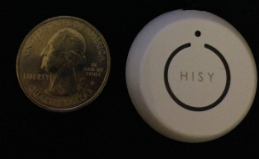 The HISY sells for $24.99 on Amazon and is Prime qualified (free two-day shipping). The HISY also includes a short strap connected to a plastic insert that fits snugly into your earphone port that allows handy access to impromptu photos that you might otherwise miss.
Why it’s frugal: The HISY is frugal because you can take up to 200 photographs with it daily for two years on a single CR2032 ($3.00) battery. It also has a very long range (30 to 90 feet), which puts it in competition with devices costing twice as much or more.
The HISY is small enough to fit comfortably in your hand and has a simple “one touch” operation. It’s simple enough for young children to operate. A single button press fires the camera shutter for a perfect, non-blurry picture.
Rating: 8.5/10
Recommendation: Buy it and test it with your favorite apps before you do real shooting with it.

 Techopedia
- An error has occurred; the feed is probably down. Try again later.
Datamation
- USA₮ Modernizes American Payments with High-Impact St. Patrick’s Day Activation in Times Square
- Google and NextEra Strike AI-Powered Grid Deal
- NYT Sues Perplexity AI in Copyright Conflict
- Cloudflare Outage Affects Major Websites
- OpenAI Forces AI to Confess Its Lies
- OpenAI Declares Code Red as Google’s Gemini 3 Threatens ChatGPT
- Coupang Breach Exposes 33.7M South Koreans’ Data
- ChatGPT Celebrates Third Anniversary
- Asahi Group Reveals Findings of Cyberattack
- OpenAI Discloses Mixpanel Security Incident Affecting Some API Users

 The Frugal Networker
You must be logged in to post a comment.